How to Make and Print a Movie Fan Poster at Home
You can make a movie fan poster with an ordinary home printer. Choose an image, print it across several sheets, and join the pages together. We'll make a 27 × 40 inch poster using Avengers: Doomsday fan art and US Letter paper.
1. Choose an image with enough detail
Start with an image you have permission to print, and download the largest version available. A thumbnail may look fine on your phone but appear blurry when enlarged. Check faces and lettering for blur, too.
To check your image, use the calculator in our guide to image resolution. Choose in, select 27 × 40 in — Movie Poster, and click Step back. For a poster viewed from about 8 feet away, the lower end of the suggested range is 1,350 × 2,000 pixels after cropping. If people will look at it up close, choose a closer viewing distance and aim for more detail.
Our example image is 2,820 × 3,524 pixels. After the crop below, the preview shows about 88 pixels per inch (PPI), within the calculator's Step back range. A sample print will show how it looks on your paper.
2. Choose Letter paper and a movie-poster size
- Open the Rasterbator poster maker and choose your image from your device. The image is processed locally in your browser.
- Choose US Letter as your paper size.
- Under poster sizing, choose Exact size and switch the unit to inch, then choose 27 × 40 in — Movie Poster from Popular sizes. If necessary, turn off Keep image proportions to set the poster to this fixed shape.
- Keep Original Image to print the artwork in color.
Our preview uses 16 sheets in a 4 × 4 grid. Your count may change with the paper size, orientation, or printer margins. You can also choose a smaller finished size to fit your wall or frame.
3. Fill the poster and check the crop
Our image has black bars on the sides. With Show the whole image selected, the preview keeps those bars and adds white space above and below the image.
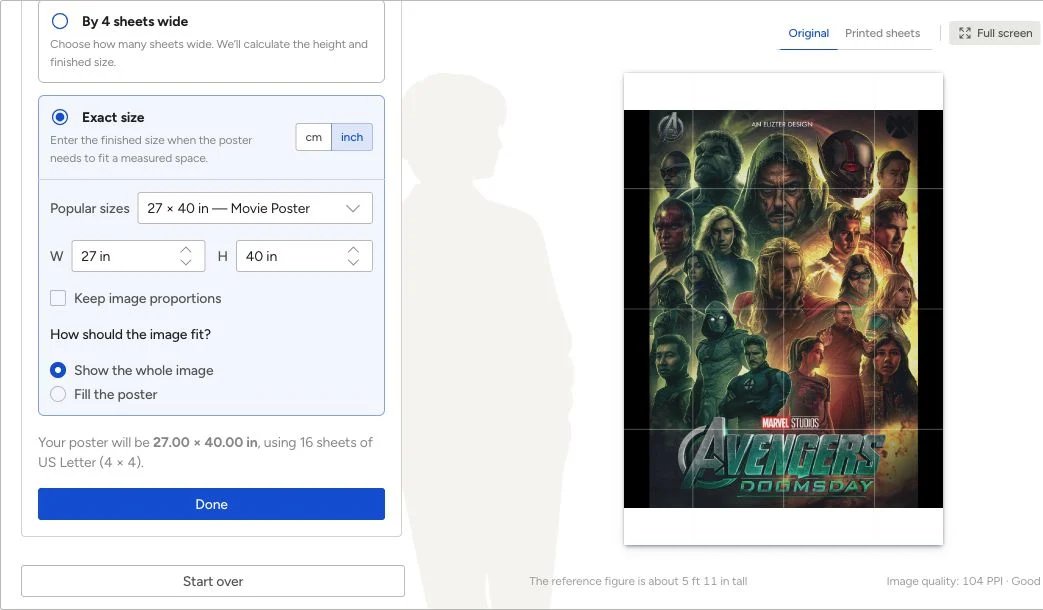
Under How should the image fit?, select Fill the poster. In this example, that crops away the black bars and fills the poster with the artwork.
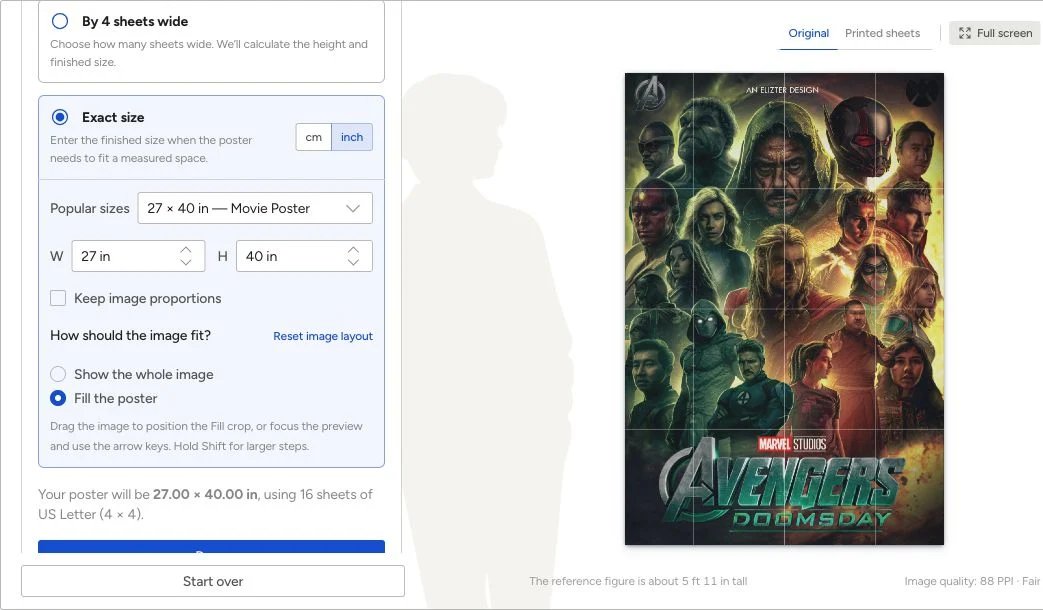
Check the edges before continuing: Fill may crop important details in other images. Adjust the image position, or choose Show the whole image to keep everything.
4. Download and print the tiled PDF
Select Review & download, check the settings, and select Create PDF. Download the poster PDF and the assembly guide. You can also view the example PDF in the gallery.
Load US Letter paper and print at Actual Size or 100%, with Fit to page turned off. Check scale with the printer margin test, then print one poster page before the rest.
5. Trim and assemble the sheets
Lay out the pages using the page labels. Follow the cut guides for your chosen joining method, line up the image, and tape or glue the sheets together. Our poster assembly guide shows how to join pages with overlap and how to trim the outside edge.
Try the RasterbatorExample artwork and license
The example is Avengers: Doomsday (Fan-Art) by Elizter1, an unofficial fan poster. The artist lists it under CC BY-NC-ND 3.0, which restricts commercial use and sharing adaptations. DeviantArt requires sign-in to download it. Check the terms and obtain any additional permission needed for your intended use.