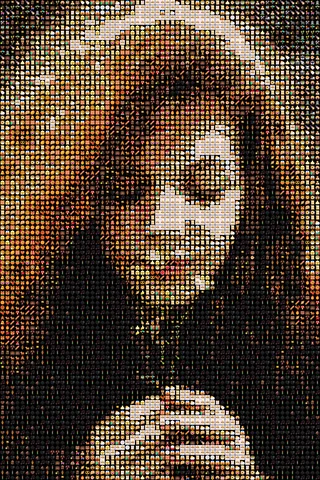
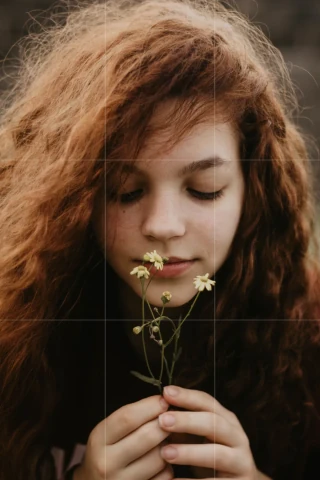
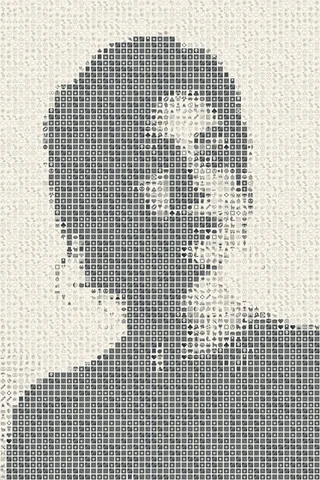
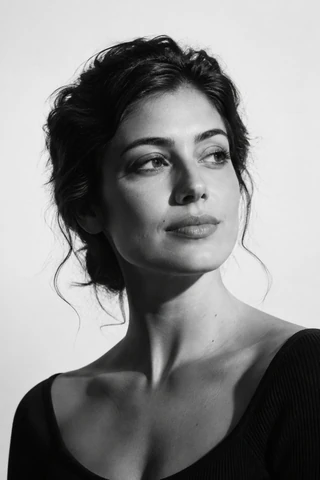
Make an emoji mosaic from your photo
- Choose an image from your device, drop or paste one, or select Try example. Portraits, profile pictures and other images with clear shapes work well as starting points.
- Choose a preset: Photo, Classic, Texture or Two-tone. Adjust Emoji collection and Emojis on long edge, then compare Original with Result. Expand the preview to see the individual emojis.
- Download the PNG when the result is ready. After changing a setting, wait for the updated mosaic before downloading.
Emoji mosaic as an art style
An emoji mosaic builds a larger picture from many small, colorful symbols. From a distance, the emojis blend into the subject; up close, each tiny face, object, or shape becomes part of the image. That shift between portrait and collage gives emoji mosaic art its playful character.
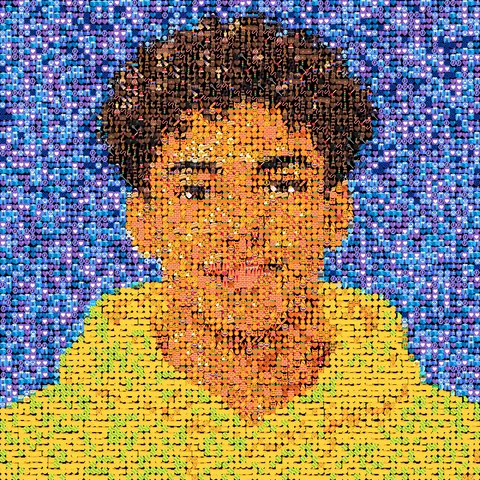
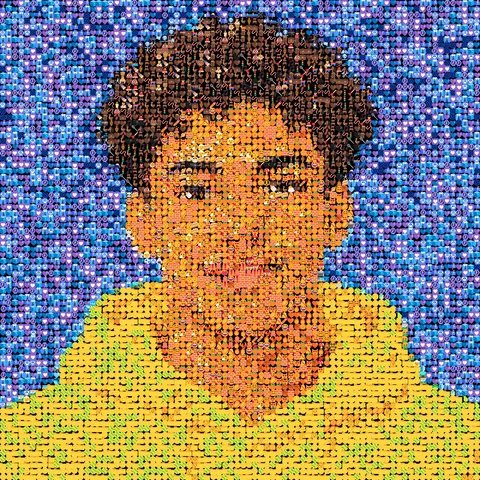
For an emoji PFP, a clear face and a simple background help the portrait read at a small size. Classic keeps the individual emojis distinct, Texture creates a denser collage, and Photo preserves more of the image’s color blocks. Two-tone gives an emoji mosaic a more graphic, poster-like look. Try different collections to change the mood as well as the colors.
Choose a look
Photo places a small emoji over a block matching the colors in that part of your image. It helps keep the subject recognizable, especially when using fewer emojis.
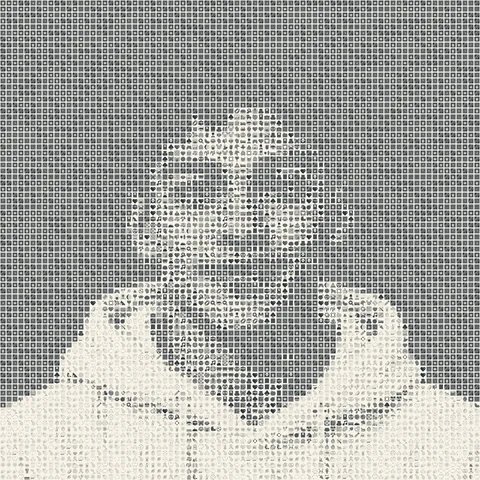
Classic arranges emojis in a regular grid on a solid background. Texture uses larger, overlapping emojis for a denser, less regular look. Two-tone uses a classic grid in your chosen Ink and Paper colors. Use Swap to exchange the two colors.
Presets change the look while keeping your image and output size. Reset effect returns to Classic. For more control, open Advanced to change the layout, contrast, colors and emoji variety.
Four ways to make an emoji PFP
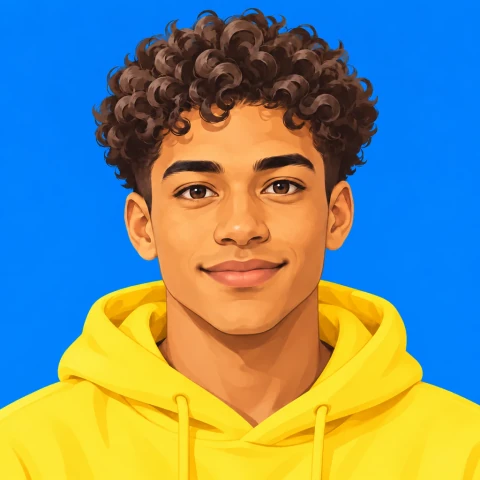
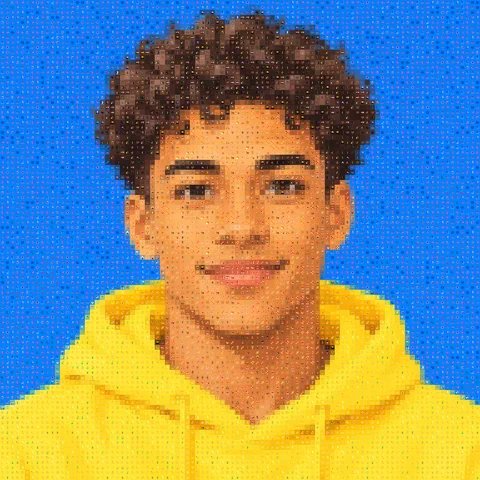
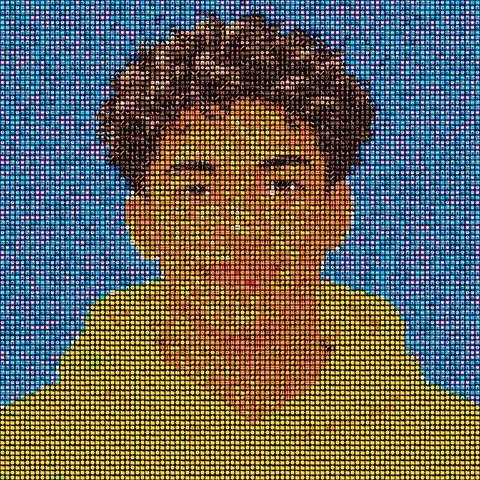
A profile picture, or PFP, is a useful way to try the four presets. The examples below use the same AI-generated illustration: a person with curly hair and a yellow hoodie against a blue background. Each mosaic is 1024 × 1024 px. Compare the color blocks in Photo, the clear grid in Classic, the overlapping shapes in Texture and the limited palette in Two-tone. The profile-picture card above lets you compare the original with Texture.
Balance detail and file size
Emojis on long edge sets the number of emojis along the image’s longer side, from 1 to 128. More emojis can show finer details, but each emoji will appear smaller. Output longest edge sets the PNG size while keeping the image proportions, up to 2048 px. A larger PNG gives each emoji more pixels; it does not add more emojis or restore missing details from the original.
Emoji collection changes the shapes and colors available. Try Mixed, Faces, Nature, Food, Objects or Travel & Places to see which suits your image. In Advanced, increase Emoji variety to include more emojis with similar colors; 0 always picks the closest color match. Lower Allowed empty space to favor fuller emoji shapes. If no emojis fit, allow more empty space or choose another collection.
Use Shuffle to try a different mix of emojis. With Texture, it also changes how they overlap. Some combinations of settings may give the same result.
Emoji artwork credits
Microsoft Fluent Emoji Flat graphics, Copyright (c) Microsoft Corporation, are licensed under the MIT license. See the artwork source, Unicode data license and asset attribution record.
Rasterbator resizes and combines the graphics to make your mosaic, and recolors them in Two-tone mode. No endorsement by Microsoft is implied.
Mixed has 256 emojis, Faces 169, Nature 152, Food 136, Objects 56 and Travel & Places 40. Objects and Travel & Places are smaller selections from Mixed. Only the collection you choose needs to load.
More ways to use your image
Try the Halftone Generator for dot patterns or the Dithering Tool for Bayer and Noise textures. To make a poster, download your mosaic and open it in the Rasterbator poster maker. Before printing, read how to print at actual size and how to assemble a tiled poster.