How to Print a Large Image on Multiple Pages
An ordinary printer can produce a poster-sized image. Block Poster Maker divides the image across several sheets, you print the tiled PDF at Actual Size / 100%, and you assemble the labeled pages. The image stays in your browser while you choose the finished size and paper.
This workflow creates a PDF you print yourself on A4, A3, US Letter, or custom paper. It does not send an order to a print shop.
For a finished movie or promotional poster, see how to print a poster on multiple pages, including a worked 4×6 photo-print example.
Before you begin
Prepare:
- a JPEG, PNG, WebP, AVIF, or HEIC/HEIF image in Safari;
- A4, A3, US Letter, or custom paper;
- a PDF viewer that can print at Actual Size / 100%;
- scissors or a craft knife, a ruler, and tape or adhesive.
Create the poster PDF
- Choose a file, a direct image link whose host allows CORS, or a built-in example.
- Confirm the paper, orientation, and margins in What paper will you print on?
- In How large should the finished poster be?, choose a number of sheets wide or high, or select Exact size and enter the finished width and height. Confirm with Done.
- If needed, expand How should the image fit? within the size question. Show the whole image preserves every edge; Fill the poster covers the target area and may crop the image. Adjust its position in the preview or with the horizontal and vertical controls.
- Expand How should the sheets join? Choose a Seamless poster assembled with Overlapping edges or Edge-to-edge, or a Framed grid with panel spacing and an optional matching outer border. Enable Cut guides and Page labels here too. Spacing is part of the finished poster; overlap does not change its size.
- Compare Finished poster and Printed sheets. Check the finished dimensions, page count, and effective resolution, and inspect a representative sheet; a corner sheet shows the margin, overlap, and cut guides at once. If you are unsure what the PPI means, see what image resolution you need.
- Download the PDF directly below the settings. On a phone, use the fixed download button at the bottom. If it is disabled, confirm the paper and finished size first.
The full poster editor also offers styles and effects. In that editor, open Review & download to choose guides, check the result and export.
Print without accidental scaling
Open the PDF and choose:
- Actual Size or 100%;
- the same paper size and orientation as the PDF;
- one-sided printing;
- no Fit, Shrink, or automatic page scaling.
Download the assembly guide near the PDF download button in Block Poster Maker, or under Review & download in the full poster editor. Before printing all sheets, print the margin test under Margins and measure its reference line using the same settings.
What a framed grid keeps
A framed grid deliberately keeps space between the image panels. Panel spacing controls that space, and Match the outer border to the panel spacing applies the same amount around the assembled grid. Both are part of the finished design; the printer margin remains disposable setup space outside the cut guides.
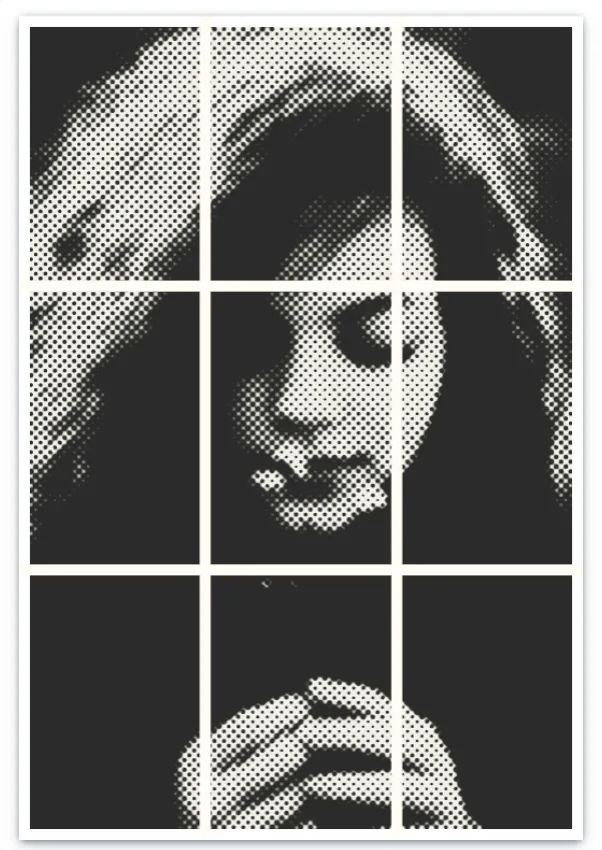

Assemble the sheets
Follow the A1, B1, A2 page labels and the method recorded in the assembly guide. For overlapping edges, trim the incoming top or left margin and place that edge over the previous sheet's repeated strip. For edge-to-edge assembly, trim to the unique image boundaries and align them directly. For a framed grid, retain the printed spacing between panels.
Common problems
The finished poster is too small or too large
Automatic scaling may have resized the PDF. Print at Actual Size / 100% and measure the reference line on the printer margin test.
Parts of the image are missing
Check whether Fill the poster was selected and inspect the crop position. Also confirm that every labeled page was printed.
Lines do not meet between sheets
Confirm the pages follow the printed label order, left to right across each row and then top to bottom, use the overlap strips for alignment, and make sure the PDF viewer did not scale individual pages.
Read how local image processing works before using a personal or sensitive image.